
Get the launcher
Download DakosApp Launcher from My Account and sign in with the account that has PXG Helper access.
POKEXGAMES / HELPER
StatusActive
Last update
PXG Helper by DakosApp is a bot for PokeXGames. Plan hunts in Nightmare World and Outland, prioritize shiny Pokémon with Shiny Priority, and automate Fishing. It also includes Cavebot routes, Pokémon targeting, automatic revive, looting, catching, and scriptable hotkeys.
Download DakosApp Launcher from My Account to install and use your helper.
Show / hide the helperShift + F11Press in the game window.
GETTING STARTED
Download DakosApp Launcher from My Account and sign in with the account that has PXG Helper access.
Use the launcher to install and launch PXG Helper. In the game window, press Shift + F11 to show or hide its panel.
Choose your Pokémon moves and Targeting rules, add Cavebot waypoints or Fishing spots, then save your setup as a named profile.
DakosApp Launcher requires Windows and the Microsoft Edge WebView2 Runtime.
Published version 1.0.137
BEFORE YOU START
Answers about the PokeXGames bot, installation, scripts and licenses.
Read the PXG Script Reference →DakosApp is the launcher and product platform. PXG Helper by DakosApp is its bot for PokeXGames; other supported games have their own helpers.
PXG Helper is memory-based and runs in the background. It does not require a virtual machine or keeping the PokeXGames window focused.
Download DakosApp Launcher from My Account. Sign in with the account that has PXG Helper access, then use the launcher to install and launch the helper.
Yes. Profiles save Cavebot waypoints, Targeting rules, Hotkeys, Shortkeys and Persistent scripts. Hotkeys, Shortkeys and Cavebot Actions use the documented ElfBot-style scripting language.
No. You pay once for the access period you choose. One license is for one computer, and there is no recurring subscription.
SEE IT IN ACTION
INSIDE THE HELPER
Expand a feature to explore its controls and screenshots.
Tell us what you would like this helper to do.
Manage your summoned Pokémon’s combat, movement, revive and care from one panel.
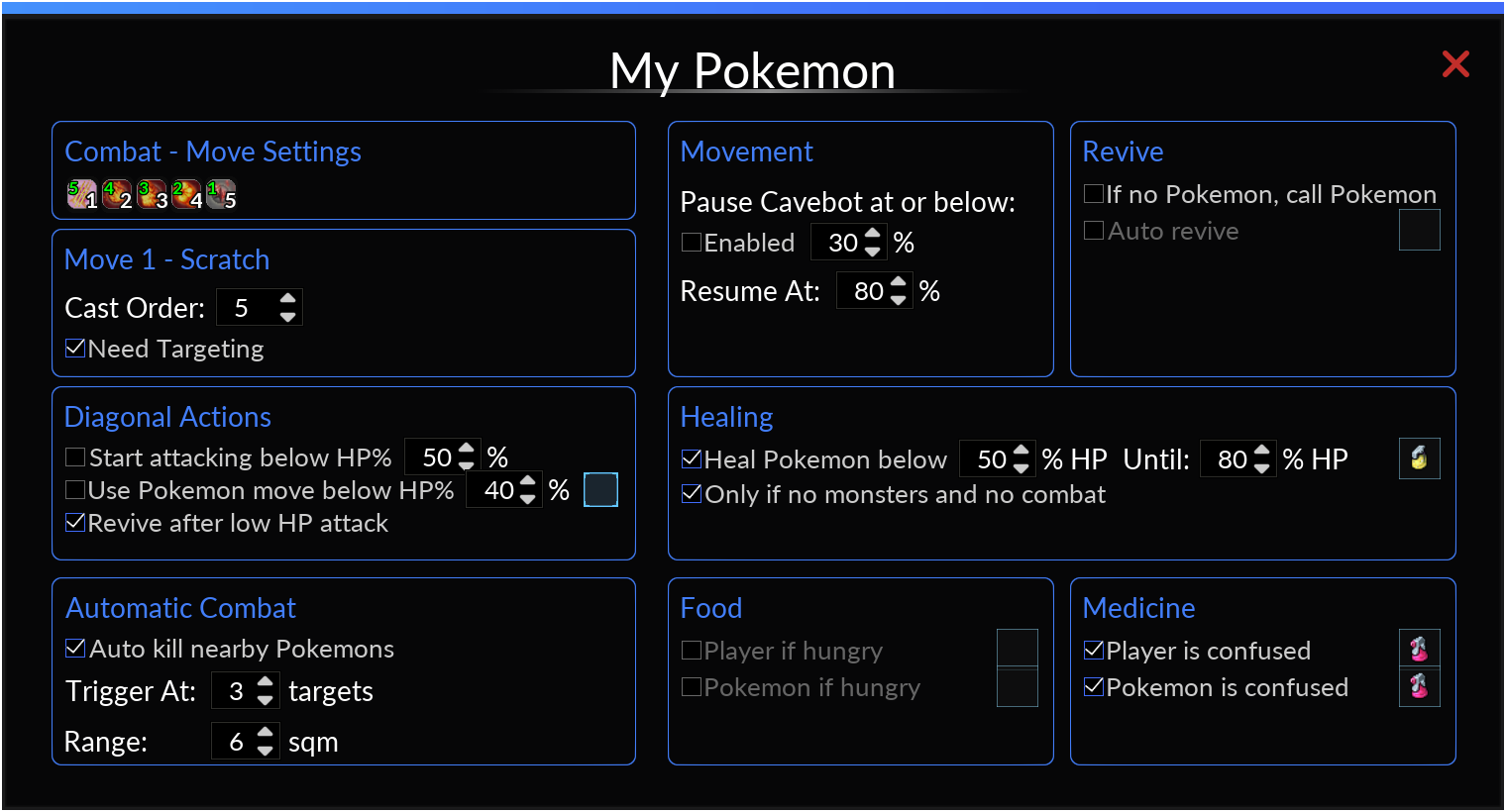
Set your summon’s move cast order and whether a move needs a target. Configure low-HP attack and Pokémon-move thresholds.
Choose when to start attacking based on HP, use a selected Pokémon move below an HP threshold, and revive after a low-HP attack.
Automatically attack nearby wild Pokémon after the configured number are within range; set both the target count and distance.
Pause Cavebot when your summon drops below a chosen HP level, then resume after it recovers to the configured threshold.
Call a Pokémon when none is summoned, enable automatic revive, and choose the revive item.
Use a selected item to heal your Pokémon below a chosen HP percentage until it reaches the target percentage. You can restrict healing to when there are no nearby monsters and no combat.
Choose food items for your character or Pokémon and use them when either is hungry.
Choose medicine items to use when your character or Pokémon has negative status (e.g. confused).
Set up automatic fishing at saved map coordinates, choose bait, and configure conditions that pause it for safety.
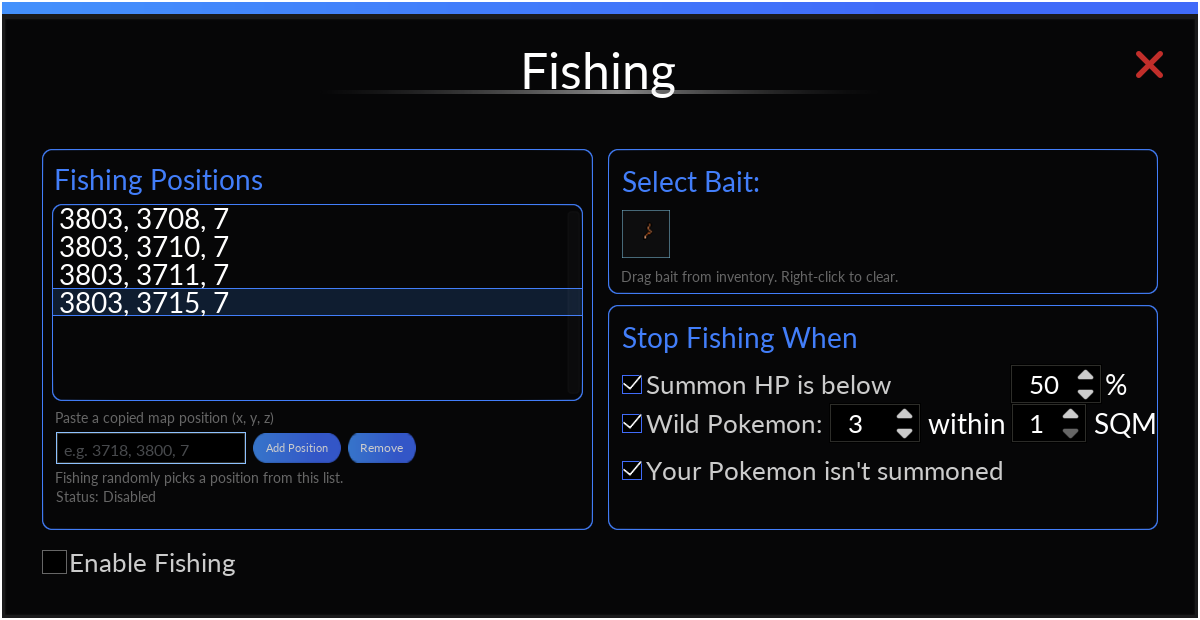
Paste, add and remove map coordinates. Fishing randomly chooses a saved position for each cast and avoids repeating the previous spot when another is available.
Drag a bait item from your inventory into the slot; right-click to clear it. When fishing is enabled, the helper uses the selected bait and waits for confirmation that it is attached to the rod before casting.
Use the Fishing-slot rod at the chosen spot, watch for bubbles on that tile, and reel in automatically when a bite is detected.
Optionally pause when summon HP falls below a threshold, too many wild Pokémon are within range, or no own Pokémon is summoned. Fishing resumes when the condition clears, and the panel shows its current status.
Use setfishingon(), setfishingoff(), setfishingtoggle(), or setfishing on/off/toggle.
Build, save and run waypoint routes for automatic movement. Add one-shot Actions to coordinate hunts, then monitor loot, catches and Pokémon recovery.
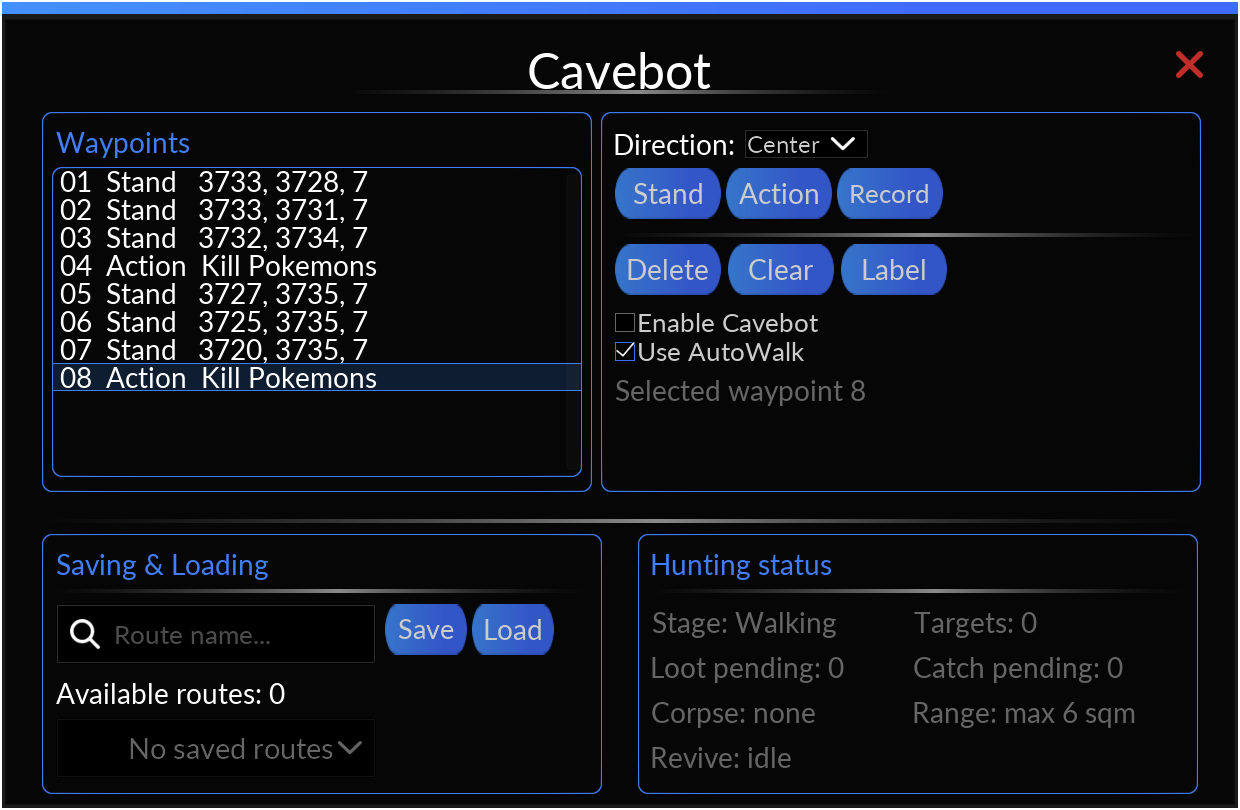
Create Stand and Action waypoints, record movement, set a direction, label or clear entries, and save named routes to reuse later.
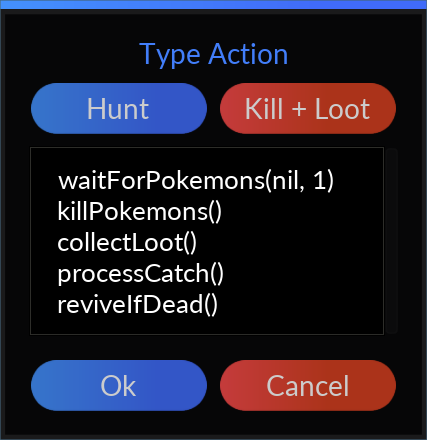
Run a one-shot script at a waypoint. Actions support all variables listed in Script Reference, including player and summon state; combine them with conditions and supported commands. Hunt and Kill + Loot buttons can insert ready-made action templates.
Track the current stage, nearby targets, pending loot and catches, corpse, range and revive state while Cavebot runs.
Build Pokémon-specific target rules, control your summon’s moves, and choose how defeated and shiny targets are handled.
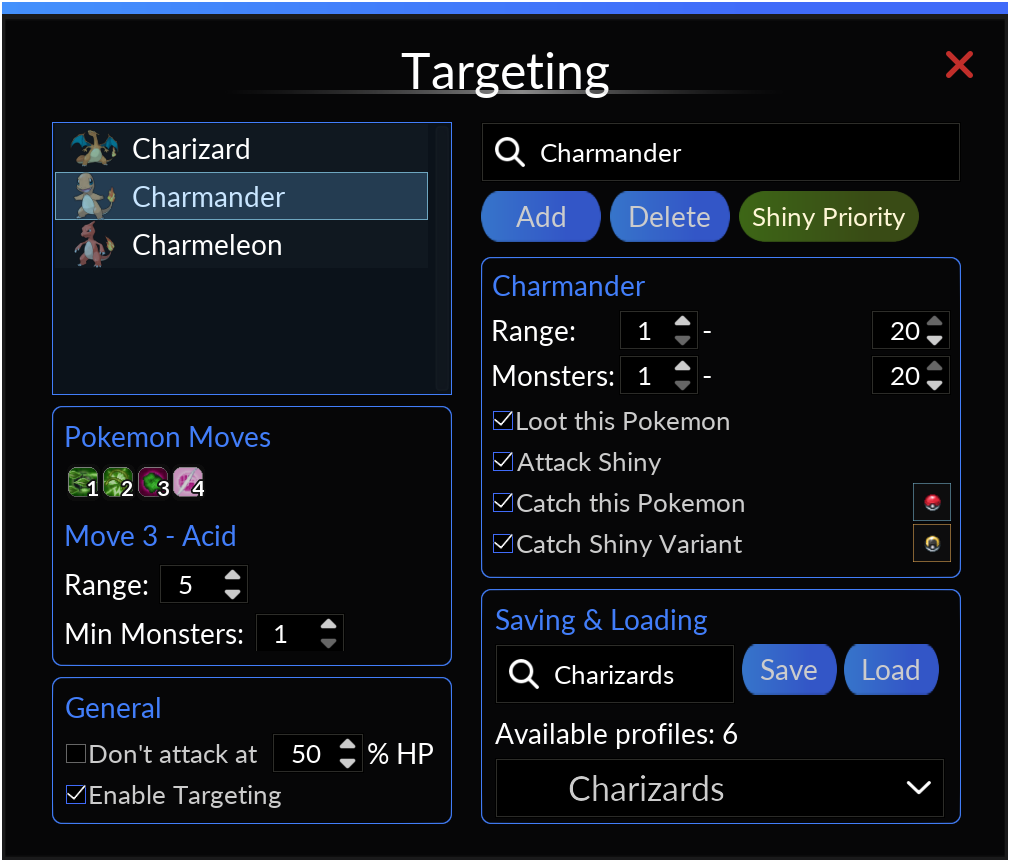
Add supported Pokémon by name, remove entries, and select a Pokémon to edit its individual rule.
Set the minimum and maximum distance, plus how many of that Pokémon must be nearby before the rule is eligible.
Toggle individual summon moves on or off. Right-click a move to open its settings.
For each move, set its usable range and the minimum number of nearby monsters required.
Choose whether this Pokémon rule also allows targeting its shiny variant.
Enable corpse looting, or drag a capture item into the regular or shiny slot and choose which targets to catch. Right-click a slot to clear it.
Enable Targeting, optionally avoid starting new attacks below a chosen summon-HP percentage, and save or load named targeting setups.
Open Shiny Priority from Targeting to configure a dedicated spell sequence, optional revival and a fallback catch item for priority encounters.
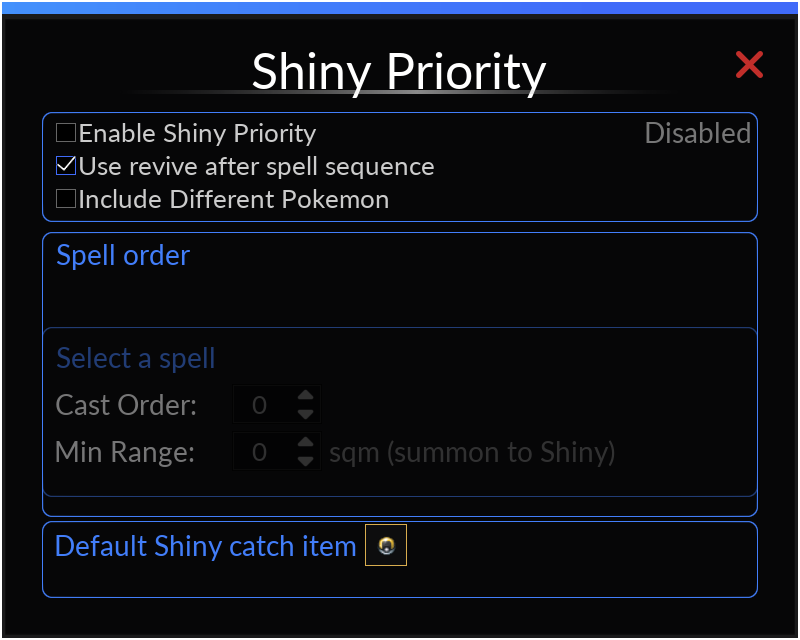
Turn priority monitoring on or off. When an eligible target is detected within range, the helper focuses on it and runs the dedicated combat, loot and catch workflow.
Disabled means the feature is off; Watching means it is enabled and waiting. During an encounter, the status shows the target and the current phase or waiting condition.
Run a revive-and-recall cycle after the configured spell sequence, then return to the spell sequence. Turn it off to continue combat without this between-sequence revival.
Also treat valid wild Pokémon missing from your Targeting list as priority targets. When this is off, priority selection is limited to shiny Pokémon.
Available non-passive Pokémon moves appear here. Left-click a move to edit its settings; right-click to reset its Cast Order and Min Range to 0. The number on its icon shows its configured order. The move controls stay disabled when no usable move is available.
Choose a value from 1 to 10 to include the selected spell in the priority sequence; lower values run first. A value of 0 excludes it. Moves with the same order are resolved by their move-slot number.
Set the minimum distance from your summon to the priority target, in sqm, required before the selected spell can cast. The sequence waits if the summon is too close. A value of 0 adds no minimum-distance restriction.
Drag a capture item from your inventory into this slot; right-click to clear it. The priority catch workflow uses the target’s configured shiny catch item when available, otherwise this fallback item.
Configure keyboard shortcuts and recurring scripts in one place. Choose a key, add the script it should run, and control which automations are active.
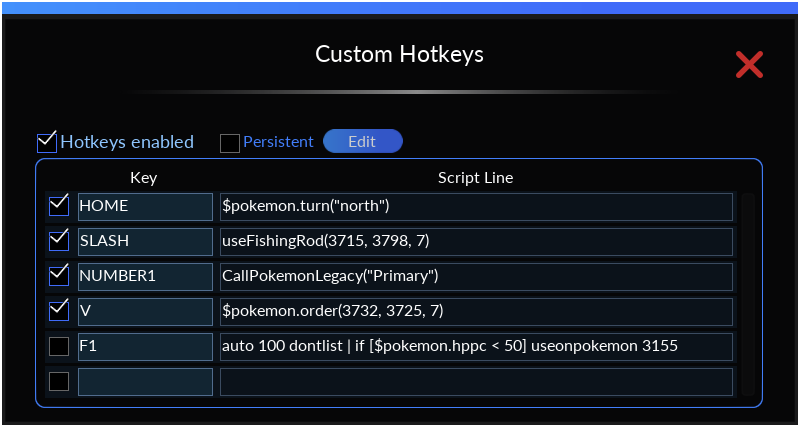
Set a key or key combination for a script, edit its command, and enable or disable individual entries. Press the same key again to stop a running script.
The main switch pauses the whole Hotkeys system and stops running scripts without deleting your saved entries.
Enable Persistent and use its separate editor for scripts attached to your character. They start automatically when you enter the game - no key press is needed - and repeat at their configured interval while you are online and the helper is not paused.
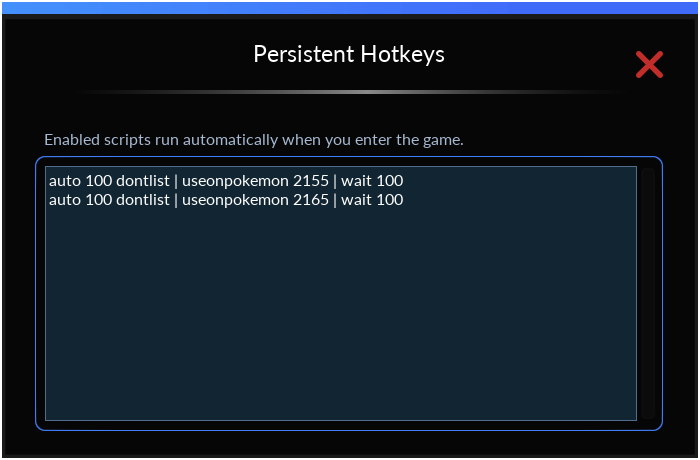
Turn Persistent off to stop those scripts. A persistent script that finishes, is stopped, or encounters an error will not restart on its own.
Create named text commands and connect each one to a reusable script line.
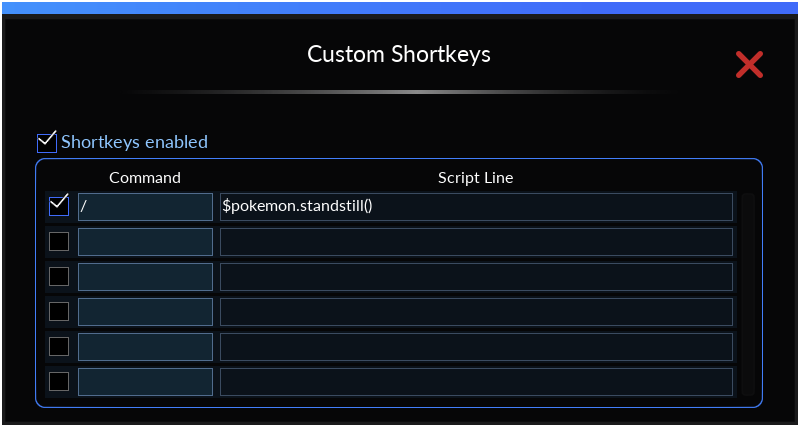
Each row pairs a command with a script. Typing the exact command in local chat runs its script instead of sending the command. Other messages and private channels are unchanged.
Enable or disable entries one by one, or switch off the entire Shortkeys system with the main toggle.
Your commands and scripts are saved in the helper settings for reuse.
Save named helper profiles to quickly switch configurations. Each profile stores your settings, Cavebot waypoints, Targeting rules, Hotkeys, Shortkeys and Persistent scripts.
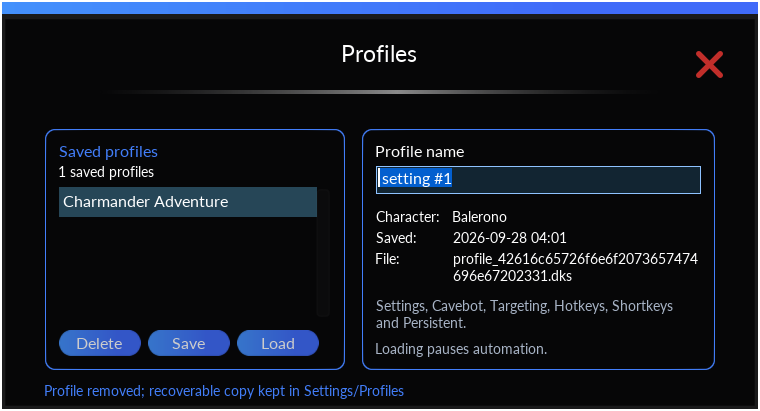
Create a named setup, update it with Save, and choose Load to apply it without adding a global pause. Cavebot, Targeting and Fishing keep their current enabled state; unchanged running scripts continue without restarting. A missing or invalid profile leaves your current setup unchanged.
Right-click a saved profile and set it as the default for the current character. It loads automatically when you enter the game without forcing a global pause or switching on disabled automation.
Delete removes a profile from the active list but keeps a recoverable copy in Settings/Profiles.
Monitor nearby players, GM activity, Pokémon encounters, low character HP and incoming messages. Choose audible alerts and optional safe logout for supported events.
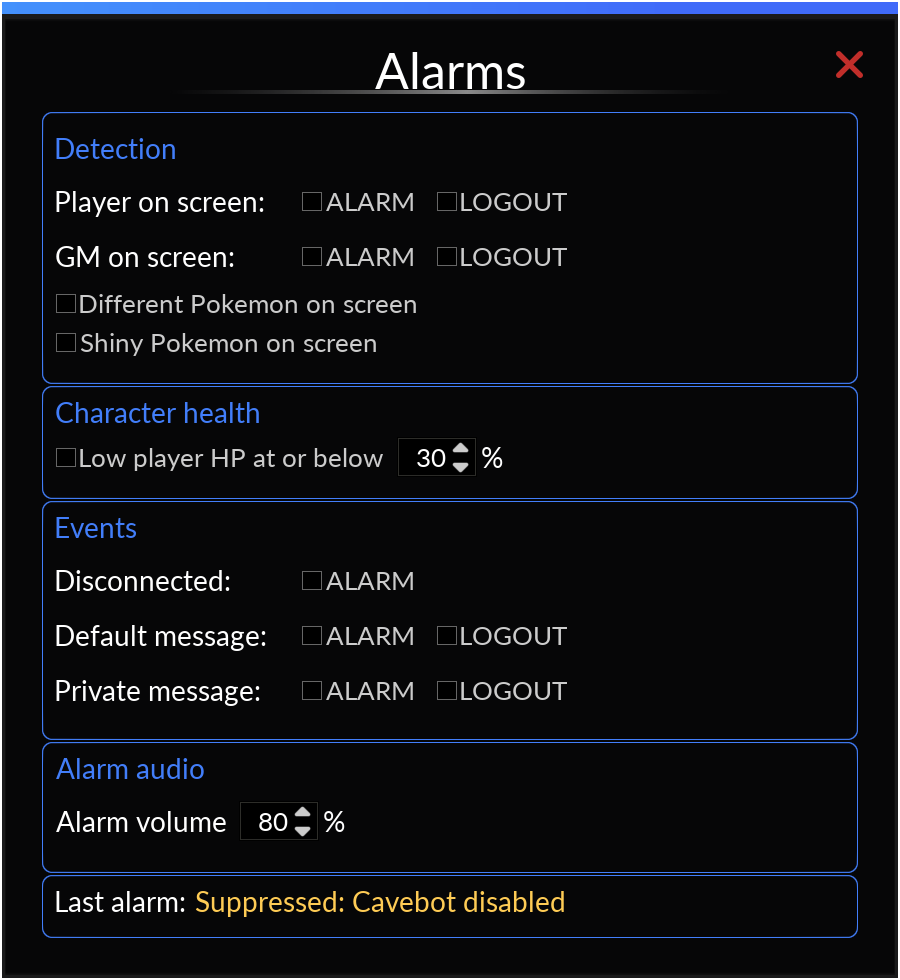
Choose ALARM, LOGOUT or both independently for other players on screen and detected GMs. The GM controls also cover incoming GM messages.
Enable an alert for a valid wild Pokémon missing from your Targeting list, or for a living shiny Pokémon on screen.
Raise an alarm when your character’s HP is at or below the percentage you set. This threshold monitors the player, not the summoned Pokémon.
Enable an audible alert when an online game session ends. It follows the last online Cavebot or Fishing state and skips the scheduled quiet period from 12:40 to 12:45 local time.
Default message covers incoming local Say, Whisper and Yell messages; Private message covers incoming PMs. Each has independent ALARM and LOGOUT switches. Your own messages and outgoing PMs do not trigger these rules.
LOGOUT pauses route movement, lets valid targets finish and waits for combat to clear before requesting a safe logout. It is not an instant force-close of the game.
Set alarm volume from 0 to 100%. Helper alarm audio is independent of muted game audio.
In-game alarm and logout actions require Cavebot or Fishing to be enabled and the character to be outside a Protection Zone.
Tune revive and combat timings to your internet connection’s latency (ping) and the server’s response time. Correct timings improve revive efficiency - how quickly your Pokémon is revived and summoned again. Smaller delays are not always better: values that are too low can cause missed actions or extra retries.
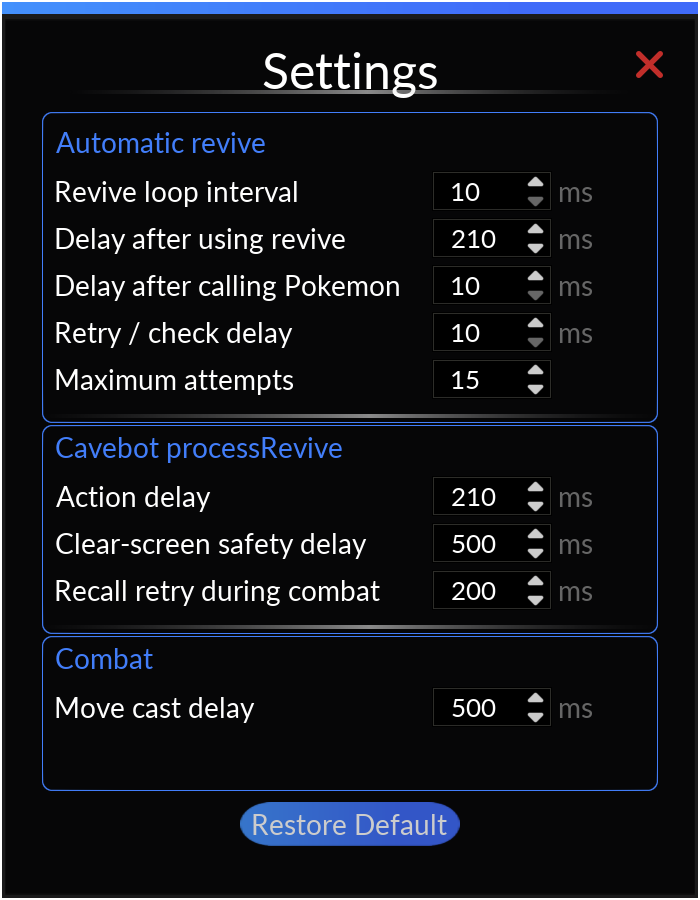
Set how often the revive loop checks your Pokémon, how long it waits after using a revive item and calling your Pokémon, and the delay between retries or checks. Maximum attempts limits how many attempts the sequence makes.
Adjust the revive action delay and the clear-screen safety delay used by Cavebot’s recovery sequence. These waits give the client and server time to confirm actions and that combat has cleared.
Move cast delay controls the wait between Pokémon move casts.
Delays are measured in milliseconds (ms); Maximum attempts is a count. Start with the defaults and adjust gradually for your ping and server response, not just your download speed. Aim for the shortest reliable revive sequence, not simply the lowest numbers.
Reset the nine timing and attempt values in this window to their defaults without deleting profiles, routes or other module settings.
LICENCE & UPDATES
Purchase access for your existing account or create one during checkout.